
How to Create Your PSI Account for the EA Exam
To create your PSI account for the EA exam, go to PSI’s IRS portal (test-takers
This is Part 2 of our four-part series on sitting the EA exam from India. Part 1 explains where remote testing from India stands. This part gets your PSI account ready, so that when you find a date in Part 3 you can book it in Part 4.
Since 1 March 2026 the IRS Special Enrollment Examination (the EA exam) has been developed and administered by PSI Services, not Prometric. Booking it means signing in to PSI’s IRS portal, so the account comes first. If you are still working out what the three papers cover, our EA exam pattern guide breaks them down.
Before you start
Have these three things ready before you open PSI’s portal.
Your PTIN
PSI’s bulletin says you must have a PTIN issued by the IRS to schedule the exam. It doesn’t say which screen asks for it, so keep it handy from the start. Applied for online, a PTIN takes about 15 minutes, the bulletin adds.
An email address you check
You sign in to PSI with your email address, and PSI sends your booking confirmation and your score report by email. Use your own address: the account is for you alone.
Your passport
The name on your PSI account must match your exam-day ID exactly. PSI’s bulletin names a passport among the acceptable IDs, and it must be an original, valid, unexpired document.
Create your PSI account, step by step
These steps follow PSI’s own pages as they looked on 25 Sep 2026. The steps are numbered in navy; the orange markers in the text, such as (marker 1), match the orange markers on each screenshot. Click or tap a screenshot to enlarge it.
Step 1
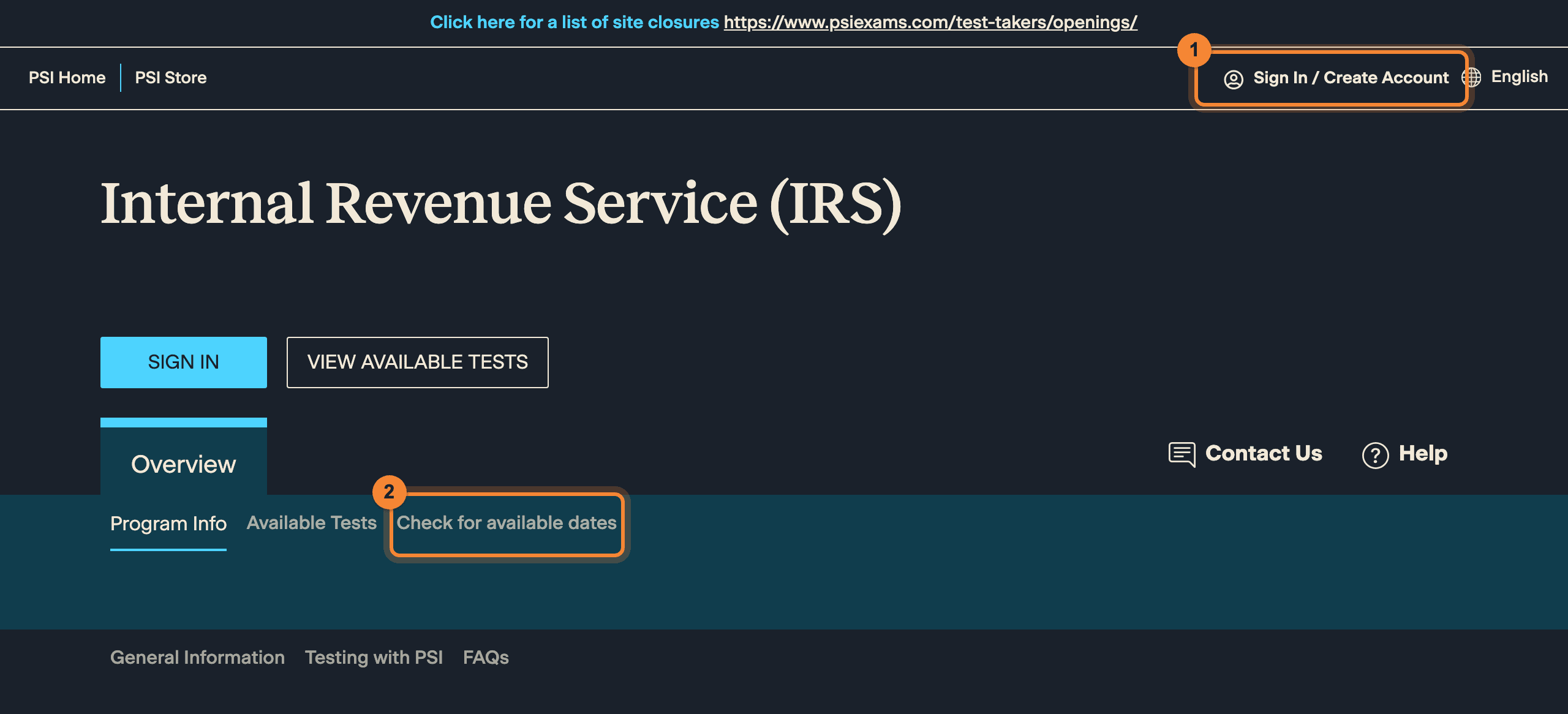
Open PSI’s IRS portal
Go to PSI’s IRS test-taker portal at test-takers
.psigov .us/ irs (opens in a new tab) and choose Sign In / Create Account at the top right of the page. That link is marked (marker 1) in the screenshot. The same page has Check for available dates (marker 2), which works without an account; Part 3 walks through it.
Step 2
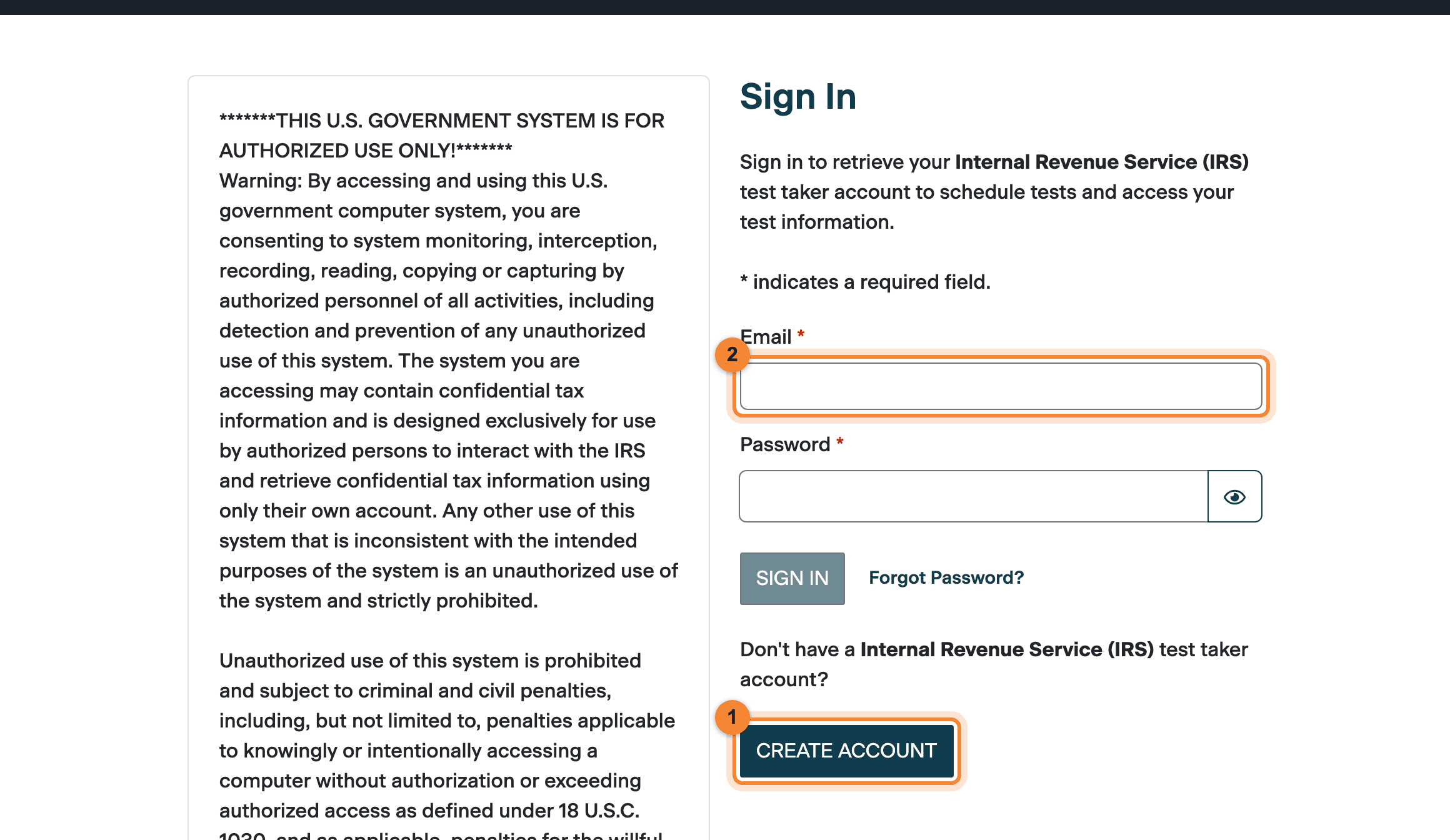
Choose CREATE ACCOUNT
On the Sign In page, choose CREATE ACCOUNT. It sits under the line that asks whether you already have an Internal Revenue Service (IRS) test taker account.
CREATE ACCOUNT is (marker 1) in the screenshot. The Email field (marker 2) and the Password field below it are for signing in once your account exists.
Step 3
Read the notice, then choose I AGREE
The Create Account page opens with a US government system-use notice. Read it, then choose I AGREE to continue.
The progress bar at the top (marker 1) shows where you are: Create Account, then Verify, then Finish. I AGREE is (marker 2).
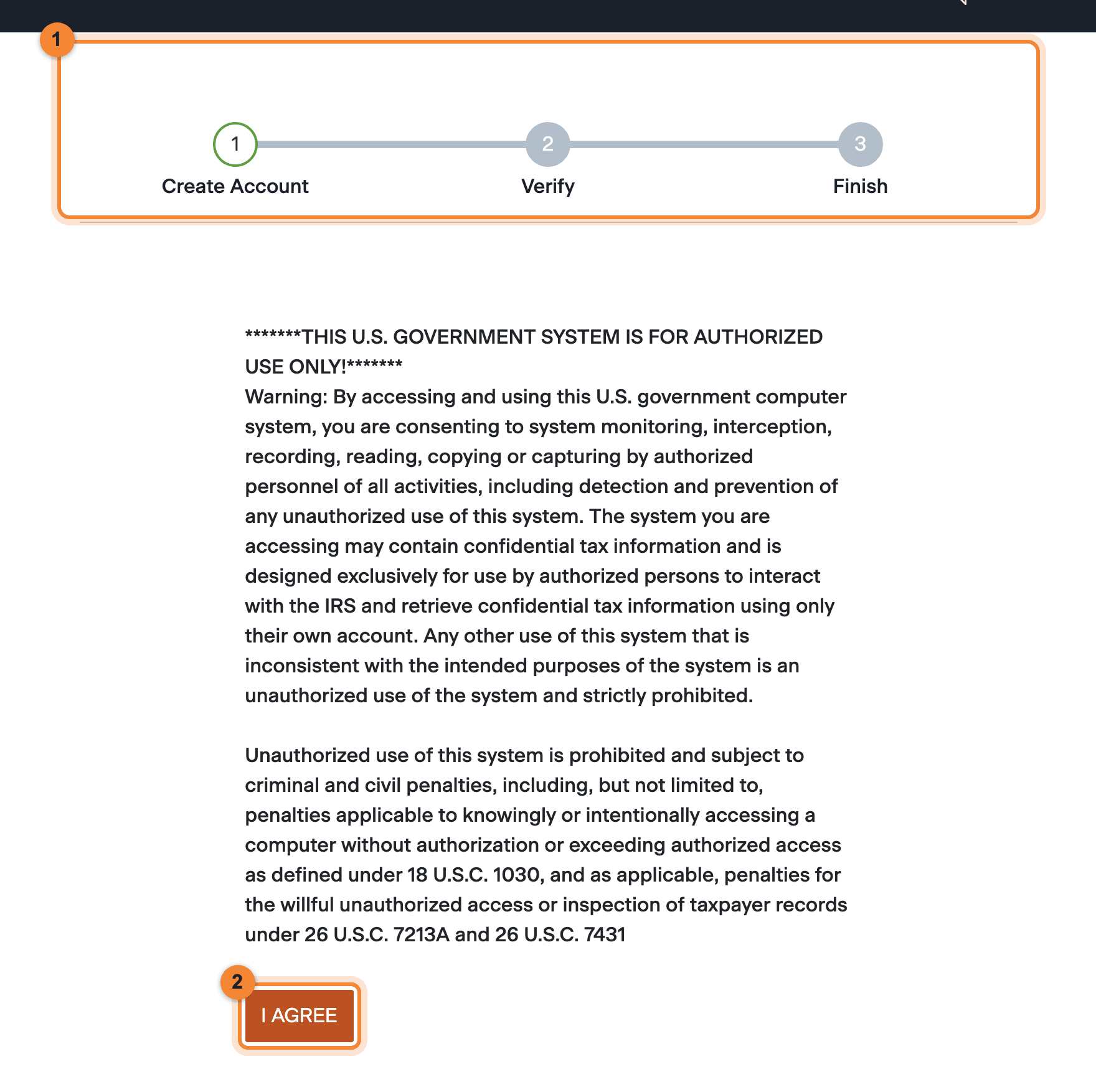
Creating an account takes three steps: Create Account, Verify, Finish (1). It opens with a US government system-use notice that you accept with I AGREE (2). Screenshot: PSI Services, captured 25 Sep 2026. Information: What you are agreeing to
PSI’s notice says that by using the system you consent to monitoring and recording of your activity. It describes the portal as a US government system for authorised persons “using only their own account”, and warns that unauthorised use can bring criminal and civil penalties.
Step 4
Complete the Create Account, Verify and Finish stages
Follow the prompts on screen through PSI’s three stages: Create Account, Verify and Finish. Wherever PSI asks for your name, enter it exactly as it appears on your passport.
Keep your passport open beside you as you go, so you can copy your name letter for letter. Use an email address you check, because that is where PSI sends your booking confirmation.
Note: Screenshots of these screens are coming
We stopped at I AGREE. We did not create a PSI account for this guide, so we have not shown the screens that follow, and PSI’s own documents don’t describe what the Verify stage asks for. We will add annotated screenshots of these screens.
Step 5
Sign in with your email and password
From then on, sign in on PSI’s Sign In page with your email address and password. If you forget the password, use Forgot Password? on that page rather than creating a second account.
Your account is where you “schedule tests and access your test information”, in the Sign In page’s own words. That page carries the same government notice, with an I Agree checkbox.
The name rule
Use the exact name on your passport
PSI’s FAQ is plain about this: the name you schedule under “must exactly match the name shown on your identification”. The bulletin says the same from the other side: your ID must match the name used for registration. So the name you type into your PSI account is the name you are held to on exam day.
PSI’s FAQ adds that the ID must show your name in the English alphabet, your signature and your photograph. The bulletin asks for an original, valid, unexpired, government-issued ID with a current photo and your signature (or two government IDs, one with each), and names a passport among its examples.
How to get it right
- Pick your exam-day ID first. Then register with your name exactly as that document shows it.
- Copy it letter for letter. Same spelling, and no nickname, short form or initials in place of a name your ID spells out.
- Ask PSI before you book if in doubt. The bulletin says to contact PSI before scheduling if your ID cannot meet its requirements.
Warning: A name mismatch can cost you the exam and the fee
If the name on your ID doesn’t match your registration, for example after marriage, PSI’s bulletin says you will not be permitted to test unless you show an original certified marriage certificate or legal name-change document. Photocopies and digital images are not accepted, and being turned away for ID means losing your test fee.
Keep the account yours, and the login safe
PSI’s notice describes the portal as a US government system for authorised persons “using only their own account”. In practice:
- Create the account yourself, with your own email address.
- Don’t share your password, and don’t let anyone else sign in as you.
- If you forget the password, use Forgot Password? on the Sign In page rather than opening a second account.
- Once you book, keep your confirmation number. The bulletin says you will need it to change or cancel your appointment.
- To report a security concern, PSI’s pages give seesomething
saysomething@ psigov .us.
After sign-up
What you’ll use your PSI account for
PSI’s documents name these jobs for your signed-in account. We haven’t seen those screens yet, so each card is described from PSI’s documents, with its source.
Book your exam and pay
PSI’s Part 1 test page says you must sign in or create an account to schedule. The fee is US$317 per part, paid when you schedule, and the bulletin lists MasterCard, Visa and American Express. Part 4: book your remote exam
Source: PSI Part 1 test page; bulletin p. 12
Get your confirmation email again
If it never arrives or you lose it, sign in and request a duplicate. It shows the date, time and location of your exam.
Source: Bulletin p. 10
Reschedule
Rescheduling is done online through the portal, or by phone. Part 4 covers the 48-hour rule.
Source: Bulletin p. 12
Request testing accommodations
Requests go through your PSI candidate portal during scheduling, with supporting documents from a qualified medical authority or specialist.
Source: Bulletin p. 13
Print your score report
A pass/fail message appears on screen at the end, and PSI emails your score report. You can also print it from the Manage tab.
Source: Bulletin p. 42
Next: find a date in IST, then book it
With your account ready, look for a date. PSI’s availability checker is public, so you can browse remote dates in India Standard Time without signing in. The checker holds nothing, though: PSI says a date is not reserved until booking is complete, and booking needs your account and the fee.
Questions about the PSI account
Do I need a PTIN before I create my PSI account?
PSI’s candidate bulletin says you must have a PTIN issued by the IRS to schedule the exam. PSI’s documents do not say at which screen it is asked for, so get your PTIN first and keep it handy when you create your account and book.
What name should I use on my PSI account?
Use your name exactly as it appears on the ID you will show on exam day, such as your passport. PSI says the name used to schedule must exactly match the name on your identification, and the ID must show your name in the English alphabet, your signature and your photograph.
Can I use Aadhaar or a PAN card instead of a passport?
PSI’s documents do not say either way. The bulletin asks for a valid, original, unexpired, government-issued ID with your photo and signature, and names a passport as an example. If your ID cannot meet these requirements, the bulletin says to contact PSI before scheduling your appointment. If you are unsure whether an Indian card qualifies, we suggest you ask PSI before you book.
What happens at the Verify stage?
PSI’s progress bar shows three stages, Create Account, Verify and Finish, but PSI’s documents do not describe what Verify asks for. Follow the prompts on screen. We will add annotated screenshots of these screens to this guide.
Does creating a PSI account book my exam?
No. The account is what you sign in with to book. A date is not reserved until booking is complete, and the US$317 fee per part is paid at the time of scheduling.
I forgot my PSI password. Should I create a new account?
Use the Forgot Password? link on PSI’s Sign In page. CREATE ACCOUNT is meant for candidates who do not yet have an IRS test taker account.
Note: Stuck? Contact PSI
PSI’s bulletin sends exam questions to PSI: email irs@
By our own conversion (PSI gives ET only), that is about 5:00 PM to 5:30 AM IST (next morning) until 31 October 2026, and 6:00 PM to 6:30 AM IST (next morning) from 1 November 2026, when US daylight time ends.
Official sources
- PSI: create an accounttest-takers.psigov.us · Create Account, Verify, Finish; the I AGREE notice (opens in a new tab)
- PSI: sign intest-takers.psigov.us · Email, password, Forgot Password?, CREATE ACCOUNT (opens in a new tab)
- PSI: IRS program FAQstest-takers.psigov.us · The exact-name rule and ID requirements (opens in a new tab)
- PSI: IRS Special Enrollment Examination Candidate Information Bulletin (PDF)test-takers.psigov.us · PTIN p. 9; ID p. 10; fee p. 12; accommodations p. 13; score report p. 42 (opens in a new tab)
- PSI: EA-SEE Part 1 test details and instructionstest-takers.psigov.us · Sign in or create an account to book; the $317.00 USD fee (opens in a new tab)
- PSI: contact PSItest-takers.psigov.us (opens in a new tab)
- IRS: Become an enrolled agentirs.gov · PSI took over the exam from Prometric on 1 March 2026 (opens in a new tab)
Checked on .
Sankhya Academy is an independent training provider, not affiliated with or endorsed by the IRS or PSI Services.